
The Executive Summary Report is a monthly email that shows a franchisor where the brand's insurance compliance stands. This guide covers who gets it, how to turn it on or off, and what each part of the email means.
When it arrives and who gets it
The report goes out on the 1st of each month. The subject reads Monthly Insurance Report: [your brand] · [month] and it comes from Rikor.
It goes to each franchisor contact on your brand's user list who has the Executive Summary Report switch on. A contact doesn't need a login to receive it. We recommend at least one person on your team who owns franchisee insurance compliance gets it every month.
Step 1. Open Account
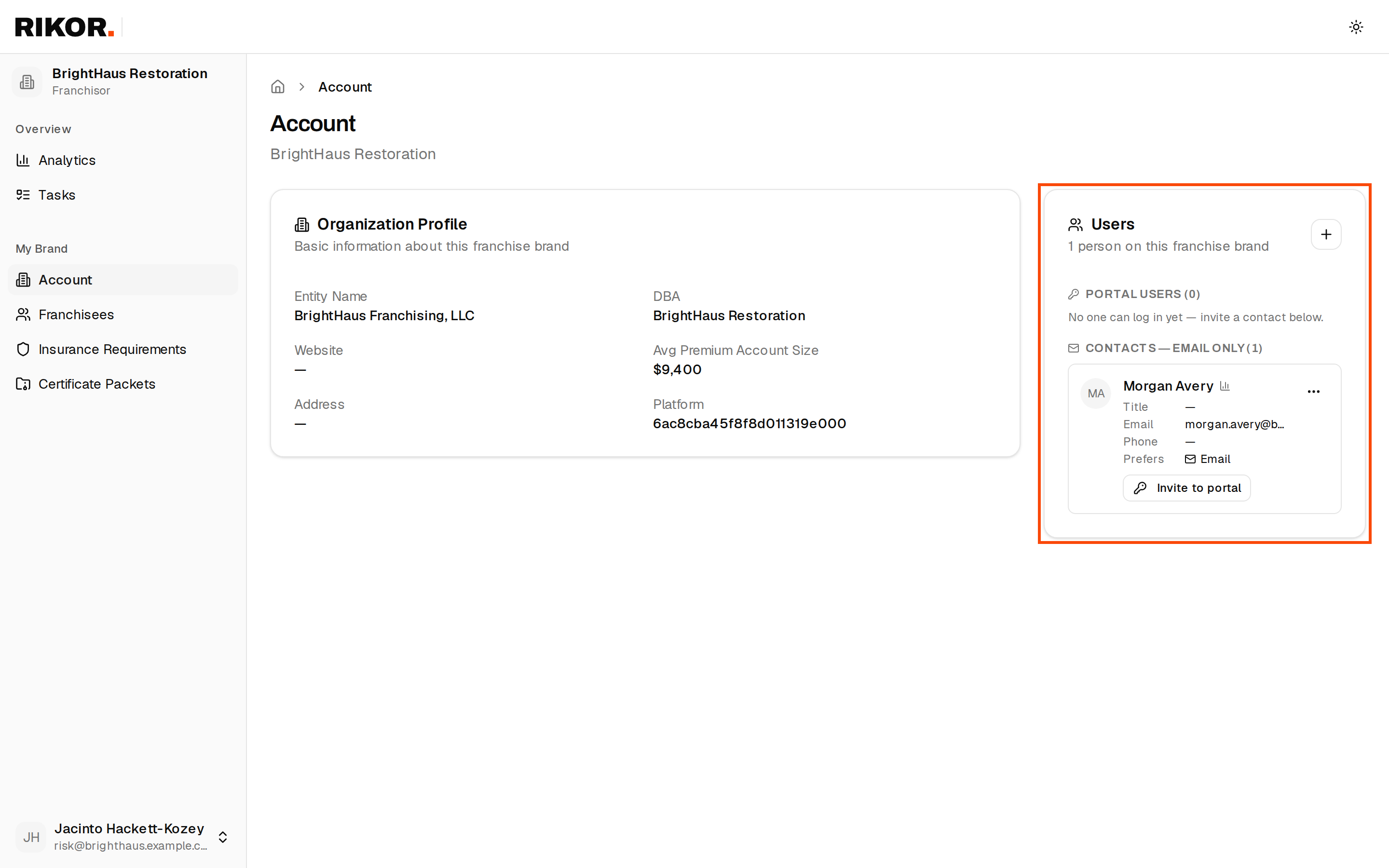
Sign in at app.rikor.io and click Account in the left menu. Your brand's people are in the Users card on the right. A small chart icon next to a name means that person already receives the monthly report.
Step 2. Edit the contact
Click the … menu on the person's row and choose Edit. To add someone new, click the + button (Add person) instead.
Step 3. Turn the report on or off
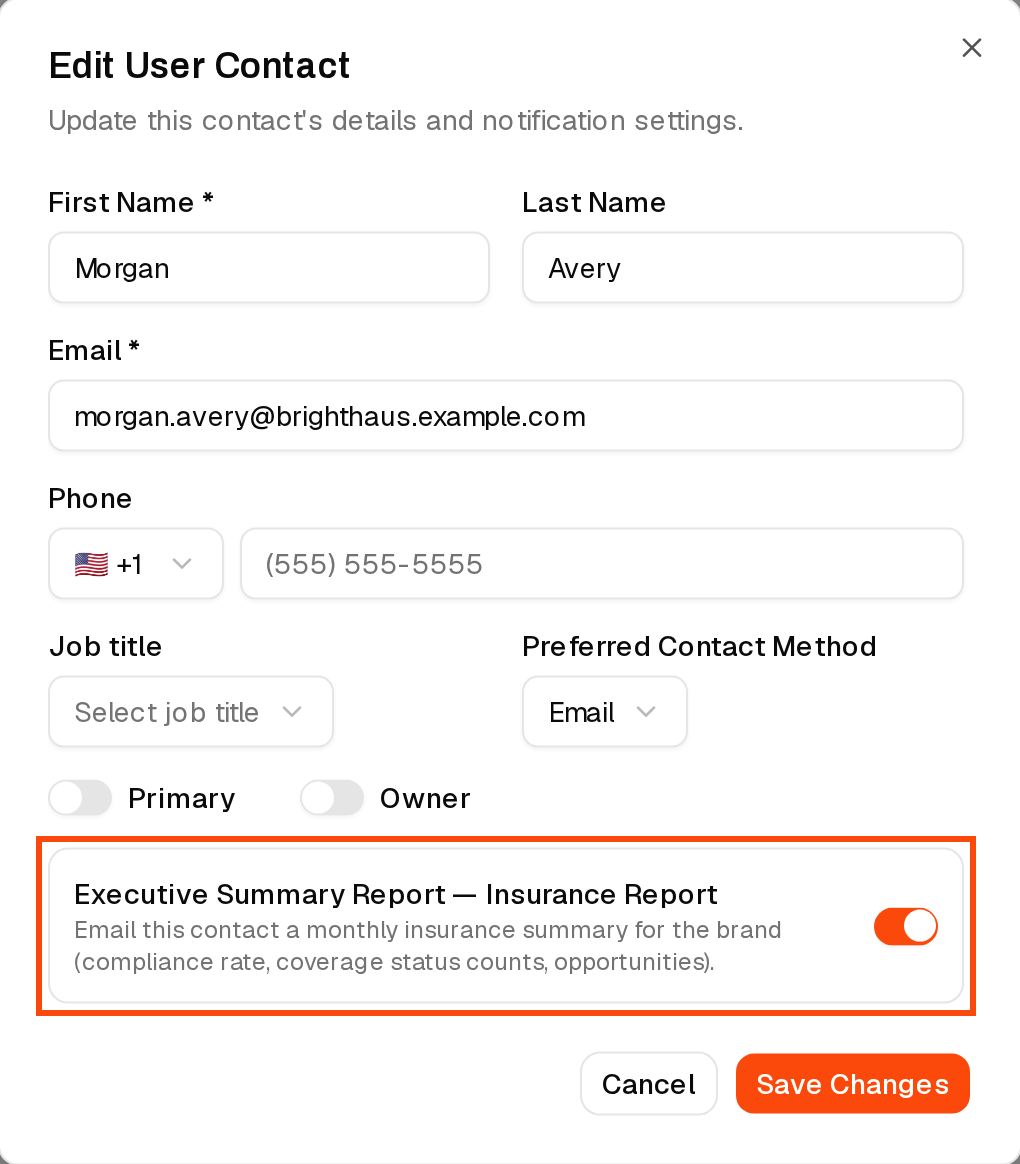
In the Edit User Contact window, find the Executive Summary Report switch. Turn it on to send this person the monthly report, or off to stop it. Click Save Changes.
You can also stop the report by replying to any report email and asking us to take you off.
What the email shows
The email reads from top to bottom like this.
| Part | What it tells you |
|---|---|
| Monthly Insurance Report | Your brand name and the month, then a one-line greeting. |
| Average coverage score | The large percentage. It is the average compliance percentage of your franchisees who have a verified certificate on file. Each franchisee's percentage is the share of your brand's requirement checks their certificate passes, so a location that meets most requirements gets partial credit. The line under it says how many franchisees were scored, for example "18 of 24 franchisees scored (verified COI on file)". |
| Change from last month | How many points the average moved since last month's report, for example "3 pts up from last month". It doesn't appear in the first month. |
| Compliance counts | How many franchisees are compliant (every requirement met), non-compliant (at least one requirement not met) and pending (no approved certificate yet). |
| Policies | How many franchisees are active, expiring, lapsed and not verified. Lapsed means a required policy is past its expiration date. Not verified means there is no policy on file to check. |
| Your network | Appears when some of your franchisees are insured somewhere other than Rikor. It shows how many of your franchisees are insured through Rikor and how many elsewhere. When the difference is large enough to be meaningful, it compares the average coverage score of franchisees insured by Rikor with those insured elsewhere. It may name up to five franchisees that are non-compliant and not insured through Rikor, and give you a link you can share with franchisees who want a quote from Rikor. Reply to the email if you'd like Rikor to contact them. |
| Open Your Dashboard | Opens the RMS. After you sign in you land on Analytics, where every number can be broken down to the exact locations. |
For what each status means, see Statuses explained.
Act on what you see
- Too many lapsed or not verified? On Analytics, click View lapsed or View unverified to get the list of locations. See How to use Analytics.
- Want to know what's wrong at one location? Open it from Franchisees and read its Compliance Ledger. See How do I know what's wrong with a franchisee's insurance?
- Do franchisees need a nudge? You don't need to chase them. The RMS emails reminders automatically. See Emails the RMS sends.
Mention the program in your franchisee meetings and newsletters. Franchisees respond faster when they hear about it from you.
If something goes wrong
- The report didn't arrive. Check that the switch is on for your contact and that your email address is right, then check spam for mail from Rikor. It only arrives on the 1st, so a switch turned on mid-month starts with the next report.
- You can't edit the contact. Ask a colleague who manages your users, or email support@rikor.io with the person's name and whether the report should be on or off.
- You manage several brands. Multi-brand (platform) users can get a separate Monthly Platform Report that covers every brand. Email support@rikor.io to set it up.
How this protects your brand
Monitoring shows you where a franchisee's insurance falls short. The way to close those gaps for good is to have franchisees insured right from the start. Franchisees insured through Rikor get coverage built to your brand's requirements by a dedicated Rikor consultant, and with monitoring on they're 93.3% compliant, against 48% for franchisees insured elsewhere. Make sure your brand's Rikor link is in your franchisee onboarding: Add Rikor to your franchisee onboarding.
Related: How to use Analytics · Statuses explained · How to add users