
This guide shows franchisors and franchisees how to add people to the Rikor RMS. Everyone you add is a contact. You decide whether they also get a login (portal access) and how much they can do.
Before you start, have: the person's name and work email. Inviting someone to sign in takes Manager access. If you don't see Add person, ask a Manager on your team or email support@rikor.io.
Step 1. Open your list of people
Franchisors: click Account in the left menu. Your team is listed on the right under Users, in two groups: Portal users, who can sign in, and Contacts, who only receive email. Click the + button (Add person).
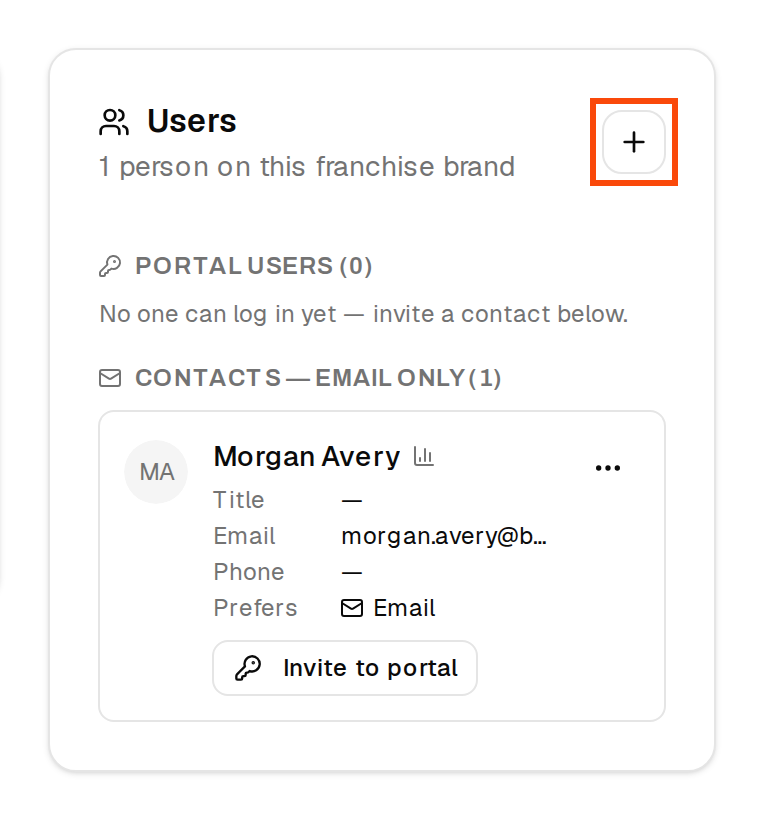
Franchisees: click Users under My Location in the left menu, then Add person.

Step 2. Enter their details
The Add User Contact window opens. First Name and Email are required. Last Name, Phone, Job title and Preferred Contact Method are optional. There is no password to set: people sign in with a code we email them.
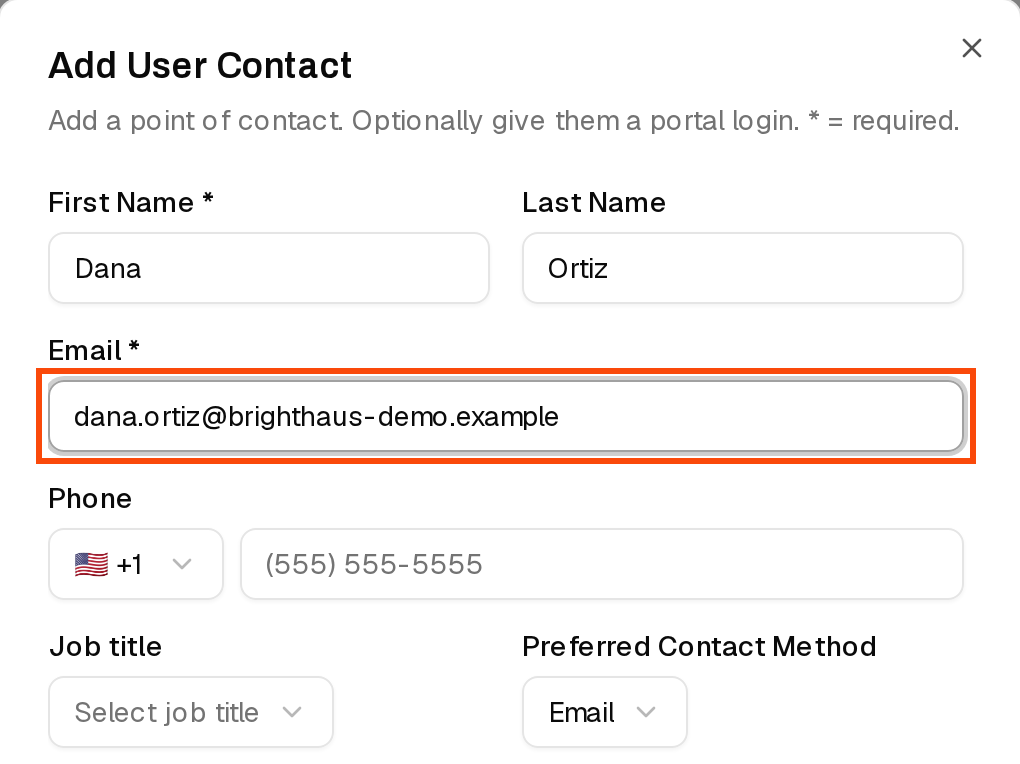
Below the details are switches:
- Primary marks your main contact. Owner marks an owner of the business.
- Compliance emails (franchisees only): this person gets Rikor's coverage-status emails, such as a request to upload a current certificate. Anyone with it on receives them, primary or not.
Step 3. Choose whether they can sign in
Turn on Portal access to invite the person to sign in to the RMS. Leave it off for someone who only needs to receive emails. You can invite them later from the menu on their row (Invite to portal).
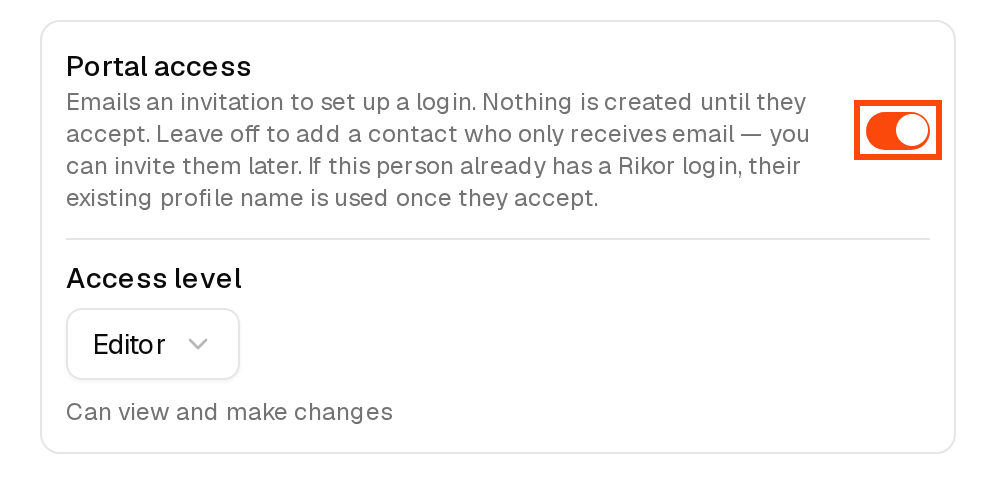
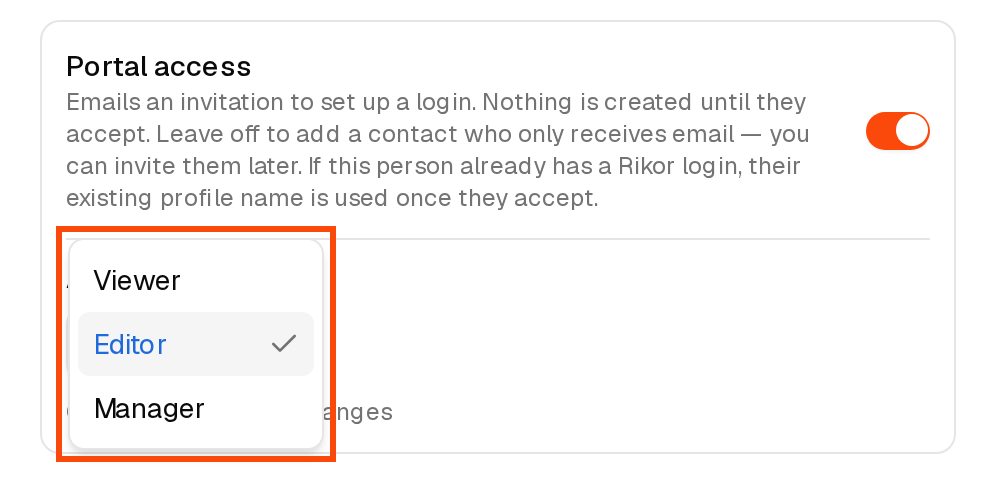
With portal access on, pick an Access level:
| Access level | What they can do |
|---|---|
| Viewer | Can view, but not change anything. |
| Editor | Can view and make changes. This is the default. |
| Manager | Can also invite and manage users. |
Step 4. Franchisors: choose who gets the Executive Summary Report
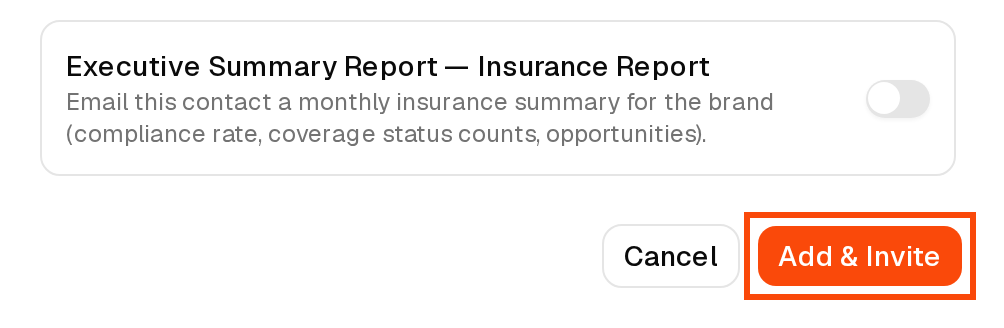
Turn on Executive Summary Report to email this person a monthly insurance summary for your brand: your compliance rate, coverage status counts and opportunities. See How to read the Executive Summary Report.
Step 5. Add them
The button at the bottom changes with your choice:
- Add & Invite (portal access on) saves the contact and emails an invitation with the subject You're invited to join … on RIKOR. Nothing is created until they accept.
- Add Contact (portal access off) saves the contact. They receive emails only.
The invited person clicks Accept Invitation in the email, then Accept invitation, and enters the six-digit code we email them. The link works for 30 days and only with the address you entered. After that they sign in at app.rikor.io with their email and a code (see How do I log in to the RMS?).
Change or remove someone
Open the menu on a person's row:
- Edit changes their details and email switches.
- Set as Primary makes them your main contact.
- Invite to portal gives an email-only contact a login.
- Resend invitation or Revoke invitation for an invitation that hasn't been accepted.
- Remove from roster removes the contact.
To remove someone's login entirely, email support@rikor.io.
If something goes wrong
- The invitation never arrived. Ask them to check spam, then use Resend invitation.
- The link expired. Invitations last 30 days. Use Resend invitation.
- They're signed in but can't change anything. They have Viewer access. Email support@rikor.io to change it.
Related: How do I log in to the RMS? · How to read the Executive Summary Report