
This guide is for franchisors. When a franchisee emails you their certificate of insurance (COI) instead of uploading it, you can upload it for them. It goes through the same review as any other upload.
Before you start, have: the franchisee's certificate as a PDF. Ask for the original ACORD 25 from their insurance agent, with every page and endorsement.
Step 1. Find the location
Sign in at app.rikor.io and click Franchisees in the left menu. Search for the location by name, then click it.
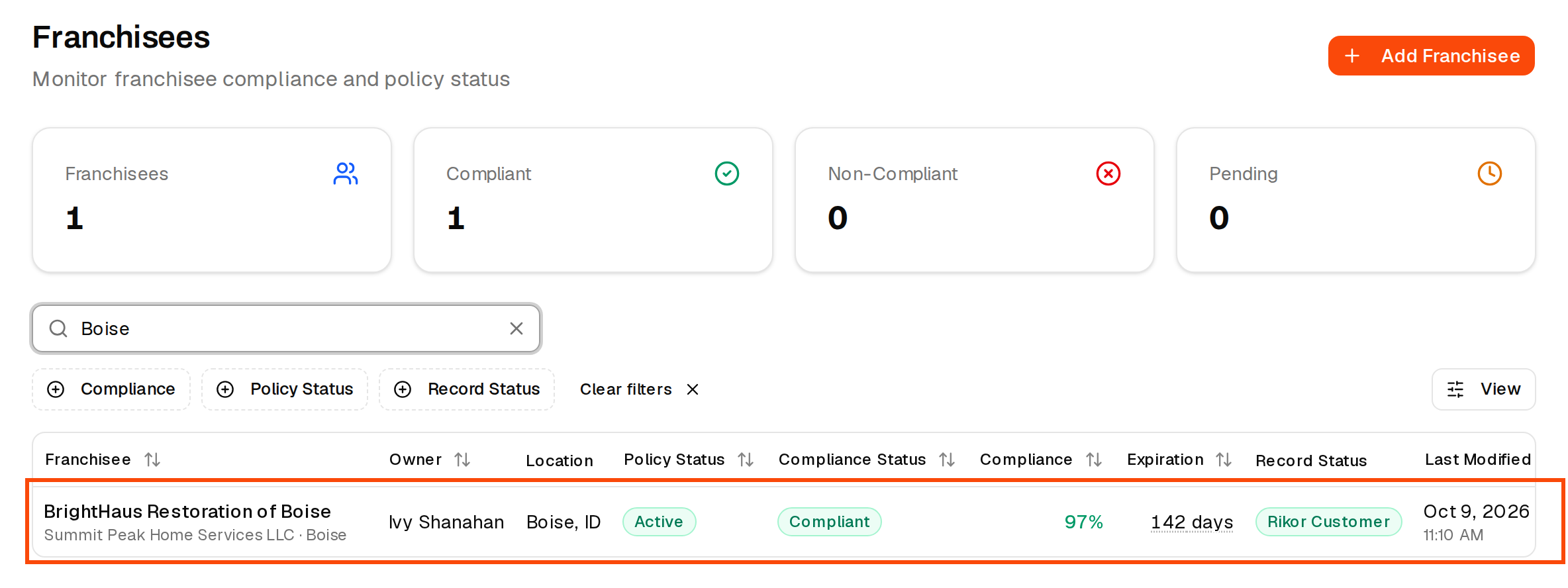
Step 2. Open Compliance
The location opens on Account. Choose Compliance in the location's menu.
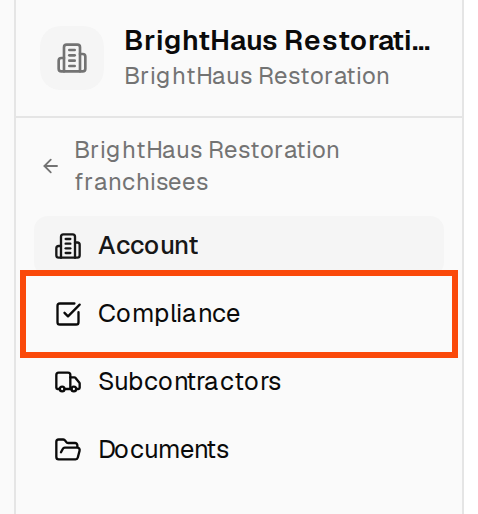
Step 3. Click Upload Certificate
Click Upload Certificate at the top right of the Compliance Ledger. The location's upload page opens in a new browser tab. Because you're already signed in, you go straight to the page with no code to enter.

Step 4. Upload the certificate
This is the same page your franchisee sees, with their brand's requirements listed below the upload box. Click Choose file or drag the PDF onto the box. You can add several files at once, for example a certificate from each of the franchisee's agencies. Then click Upload 1 document (the number matches how many files you added).

If you add one file, the page asks you to confirm. Click Submit this one, or Add more files if there's more to send. Once submitted, the page takes no more files until the review is done.
Step 5. Rikor reviews it
The page shows Documents received. Rikor reviews the certificate against your brand's requirements, usually within 24 hours. The upload is recorded under your email. When the review is done, the results appear on the same upload page and the location's Compliance Ledger updates.
If something goes wrong
- "Only PDF files are accepted." Save the certificate as a PDF, or ask the agent for the PDF, and upload again.
- "We couldn't use that document." The file is a quote, a policy or a notice rather than a certificate, or it shows no current coverage. Ask for a current certificate of insurance (ACORD 25).
- The new tab didn't open. Your browser may have blocked it. Allow pop-ups for app.rikor.io and click Upload Certificate again.
- Still stuck? Email the PDF to support@rikor.io with the location's name.
How this protects your brand
Monitoring shows you where a franchisee's insurance falls short. The way to close those gaps for good is to have franchisees insured right from the start. Franchisees insured through Rikor get coverage built to your brand's requirements by a dedicated Rikor consultant, and with monitoring on they're 93.3% compliant, against 48% for franchisees insured elsewhere. Make sure your brand's Rikor link is in your franchisee onboarding: Add Rikor to your franchisee onboarding.
Related: How do I know what's wrong with a franchisee's insurance? · How franchisees get their upload link · How to upload a COI