
This page explains every status you see in the Rikor RMS, for franchisors and franchisees. Each location has two main statuses: Policy Status says whether its insurance is in force, and Compliance Status says whether that insurance meets your brand's requirements. A location can have an active policy and still be non-compliant, for example when a limit is too low.
Policy Status
Policy Status is shown for each location on Franchisees and in Analytics. It looks only at the coverages your brand requires.
| Status | What it means |
|---|---|
| Active | The required policies on file are in force and none expires in the next 15 days. |
| Expiring | A required policy expires within the next 15 days. |
| Lapsed | A required policy is past its expiration date and no current certificate has replaced it. |
| Not Verified | There are no policy dates on file yet, usually because no certificate has been uploaded and approved. |
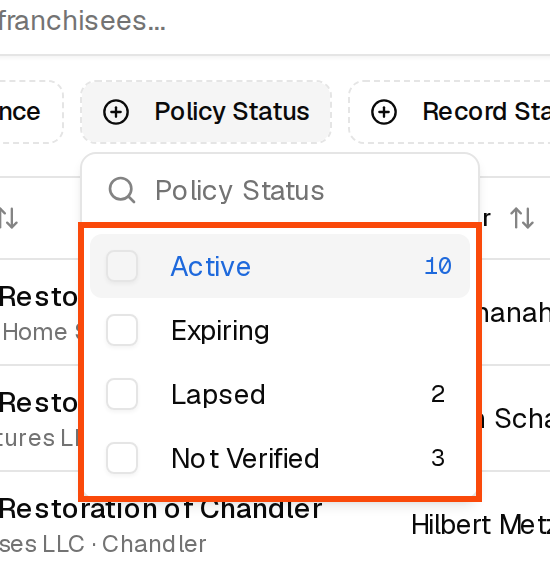
To see the locations in one status, open Franchisees and choose it under Policy Status. The number next to each option tells you how many locations match.
Policy status on each coverage
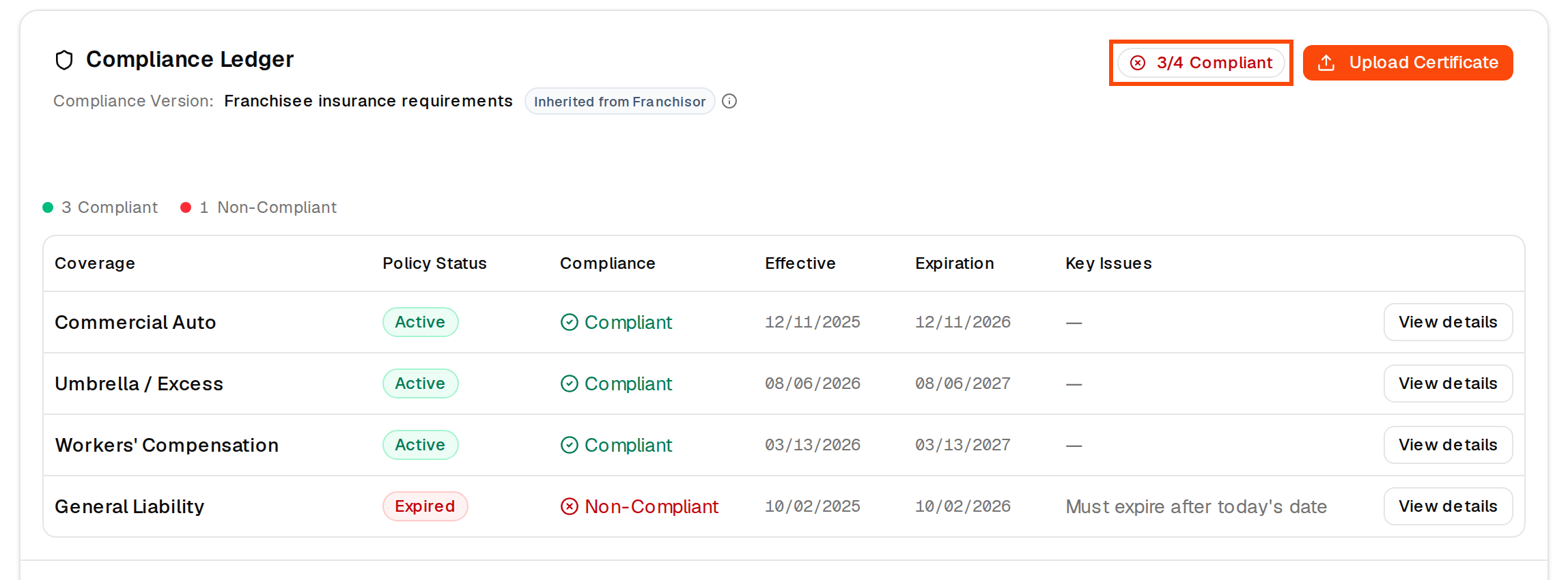
On a location's Compliance Ledger, each coverage row has its own policy badge, based on that policy's expiration date.
| Badge | What it means |
|---|---|
| Active | The policy is in force and doesn't expire in the next 30 days. |
| Expiring Soon | The policy expires within the next 30 days. |
| Expired | The policy's expiration date has passed. The location's Policy Status reads Lapsed. |
| Not Verified | There is no expiration date on file for this coverage. |
| Exempt | You exempted this location from the coverage, so no policy is needed. |
Three meanings of "expiring"
"Expiring" is measured from a different point in three places, so they don't always agree:
- The location's Expiring Policy Status (Franchisees, Analytics) starts 15 days before a required policy expires.
- The Expiring Soon badge on a ledger row starts 30 days before.
- Expiring reminder emails to the franchisee start 60 days before. See Emails the RMS sends.
So a franchisee can get a renewal reminder while their location still reads Active. That is expected: the reminder is early on purpose.
Compliance Status
Compliance Status says whether the insurance on file meets your brand's requirements.
| Status | What it means |
|---|---|
| Compliant | Every requirement on every monitored coverage is met (or the coverage is exempt). |
| Non-Compliant | At least one monitored coverage is missing, expired or falls short of a requirement. Key Issues says which. |
| Pending | No certificate has been approved for this location yet ("Awaiting first approved policy"). On a ledger row this reads Pending Review. |
| Exempt | Shown on a ledger row when you have exempted the location from that coverage. It counts as met. |
If your brand only monitors whether policies are active, a failing coverage still reads Non-Compliant but in amber instead of red, with a note that it is shown for reference and no reminders are sent for it. A coverage marked with a crossed-out eye icon is Not monitored: its status is for information only and doesn't count toward the location's score.
The compliance percentage and the Compliant badge
These replace the old Compliance Score.
- Compliance % (the Compliance column on Franchisees) is the share of your requirement checks the location's certificate passes, across its monitored coverages. Every limit, endorsement, the insured name and the certificate holder are each a check. A location that meets 9 of 10 checks shows 90%. In Analytics, Avg Compliance Score is the average of these percentages.
- The Compliant badge at the top of a location's Compliance Ledger, for example 3/4 Compliant, counts coverages instead of checks: how many monitored coverages are Compliant or Exempt, out of all monitored coverages. One missed endorsement makes the whole coverage count as not compliant.
Key Issues
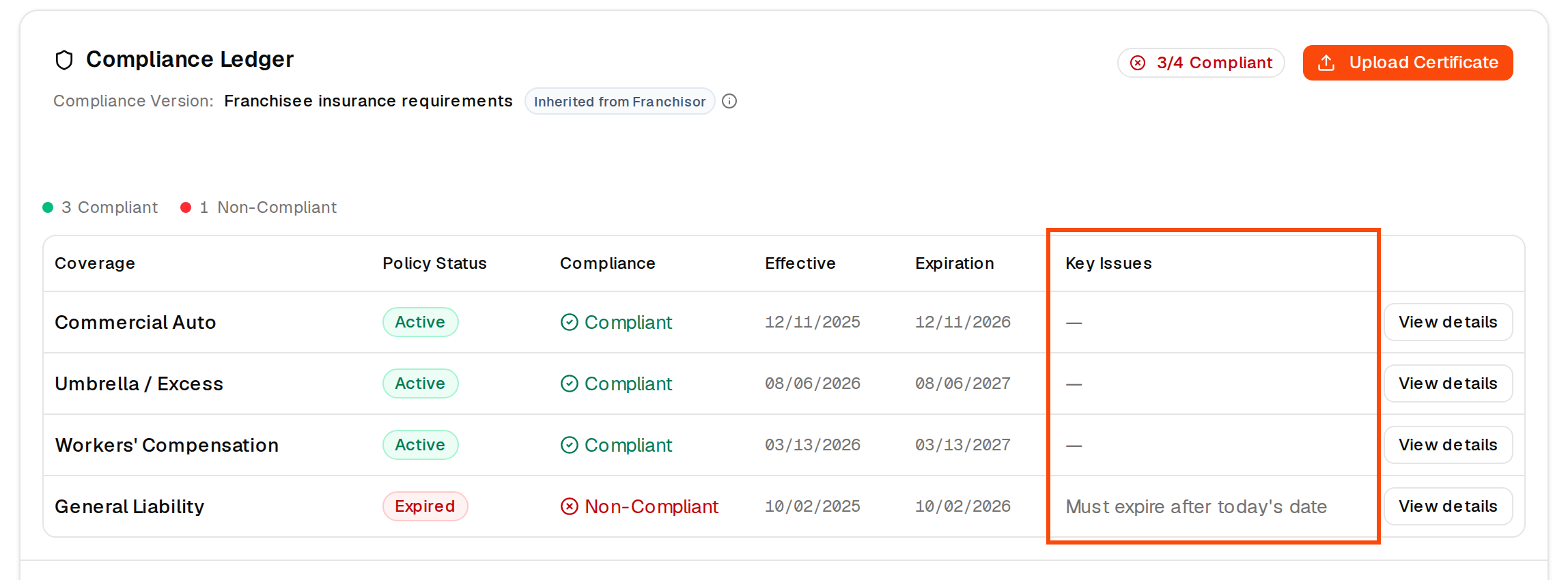
The Key Issues column of the Compliance Ledger says in plain words what is wrong with each coverage, for example Must expire after today's date for a policy that has expired. A dash means there is nothing to fix. Click View details on a row to see each requirement next to what the certificate shows. See How do I know what's wrong with a franchisee's insurance?
Your brand's requirements
Every status above is measured against your brand's insurance requirements (this replaces the old Risk Profile). Franchisors see them under Insurance Requirements in the left menu. They are read-only there; Rikor sets them up with you, and you can ask for a change at support@rikor.io. They contain:
- Coverages: each coverage type, whether it is required or suggested, and whether it is monitored.
- Limits: the minimum amounts for each coverage. Click a coverage to see them.
- Endorsements: the additions each policy must carry, such as additional insured or waiver of subrogation.
- Certificate Requirements: the Certificate Holder the certificate must name, the Description of Operations it must show, and Date Validity, how recent the certificate must be.

Franchisees see the same requirements on their upload page, under "Please make sure your Certificate of Insurance shows the following".
How a certificate is checked
- The franchisee, their agent or you upload a certificate of insurance (COI) as a PDF on the location's upload page.
- The RMS reads the certificate and pulls out each policy, its dates, limits and endorsements, the insured name and the certificate holder.
- A Rikor reviewer checks every extracted value against your brand's requirements and confirms the results. This usually takes less than 24 hours.
- About 30 minutes after the review is approved, the franchisee gets a results email, and the location's statuses, percentage, badge and Key Issues update.
A person at Rikor confirms every review before statuses change.
What the franchisee sees on the upload page
| Status | What it means |
|---|---|
| Documents received, under review | The certificate is in and Rikor is reviewing it. |
| You're all set | The certificate meets every requirement. |
| A few items need attention | The review found items to fix. Each one is listed with what is missing. |
| Needs attention / Met | Shown on each requirement in the results. |
| Handled by RIKOR | The coverage is written through Rikor, and Rikor is correcting it with the carrier. The franchisee has nothing to do. |
| Exempted by [brand] | You exempted the location from this coverage. |
Record Status
The Record Status column on Franchisees says how the location relates to Rikor.
- Rikor Customer: the location is insured through Rikor.
- Non-Rikor Customer: the location is insured through another agency. Rikor still monitors its certificates.
The Record Status filter also has Not Yet Open, for locations that haven't opened. They don't get reminder emails until they open.
Related: How do I know what's wrong with a franchisee's insurance? · How to use Analytics · How to upload a COI · Emails the RMS sends