
Analytics is the franchisor's home page in the Rikor RMS. It shows how well your locations are insured against your brand's requirements, how that has changed, and which locations need attention. Every number opens the list of locations behind it.
Analytics replaces the old Overview tab. The numbers update every day.
Step 1. Open Analytics
Sign in at app.rikor.io. Franchisors land on Analytics; you can also click it in the left menu under Overview. The page covers your whole brand.
Step 2. Read the KPI tiles
The top two rows of tiles show where your brand stands today.
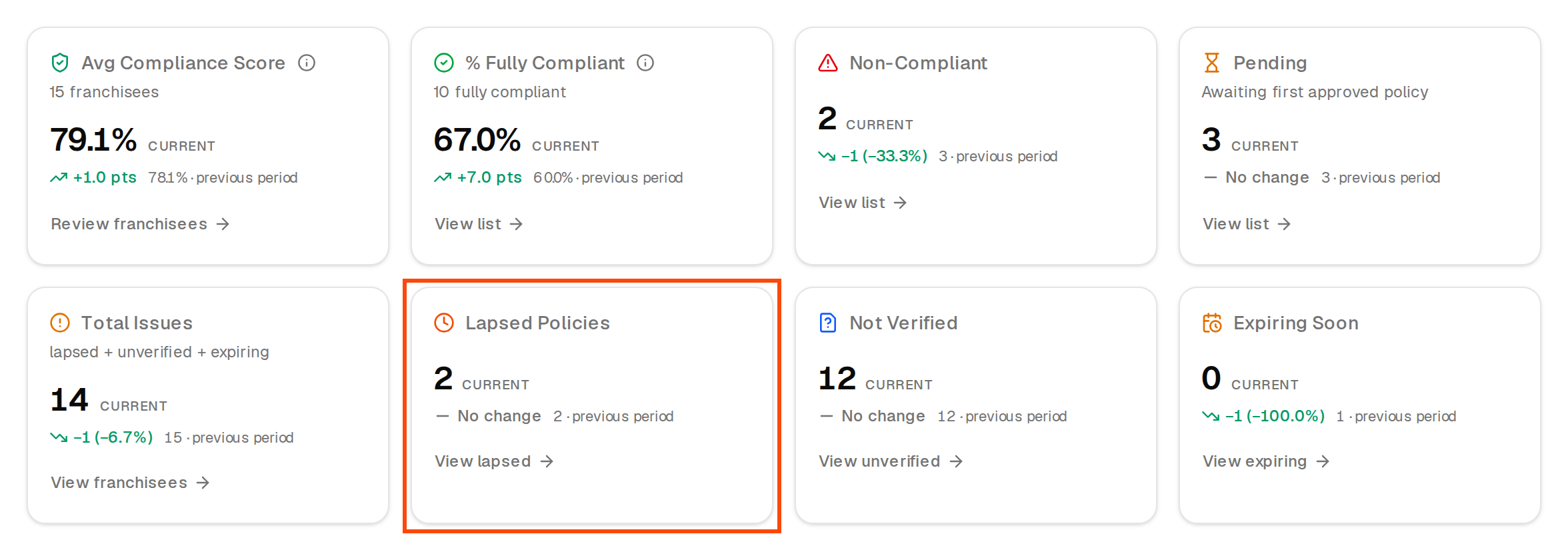
| Tile | What it counts | Link |
|---|---|---|
| Avg Compliance Score | The average compliance percentage across your franchisees. A location that meets most of a coverage's requirements gets partial credit. | Review franchisees |
| % Fully Compliant | The share of franchisees that meet every requirement. | View list |
| Non-Compliant | Franchisees with at least one requirement not met. | View list |
| Pending | Franchisees with no approved certificate yet ("Awaiting first approved policy"). | View list |
| Total Issues | Lapsed, not verified and expiring policies added together. | View franchisees |
| Lapsed Policies | Required policies past their expiration date. | View lapsed |
| Not Verified | Required coverages with no policy on file. | View unverified |
| Expiring Soon | Required policies that expire soon. | View expiring |
For exact definitions of each status, see Statuses explained.
Step 3. Choose a period and compare
At the top right, Period sets the time range: Last 7 days, Last 30 days (the default), Last quarter, Last 12 months or Custom range.
Compare is on by default. Each tile then shows how much it changed and the earlier value, against the Previous period or the Same period last year. Turn the switch off to hide the comparison.

Step 4. Read Compliance Trends
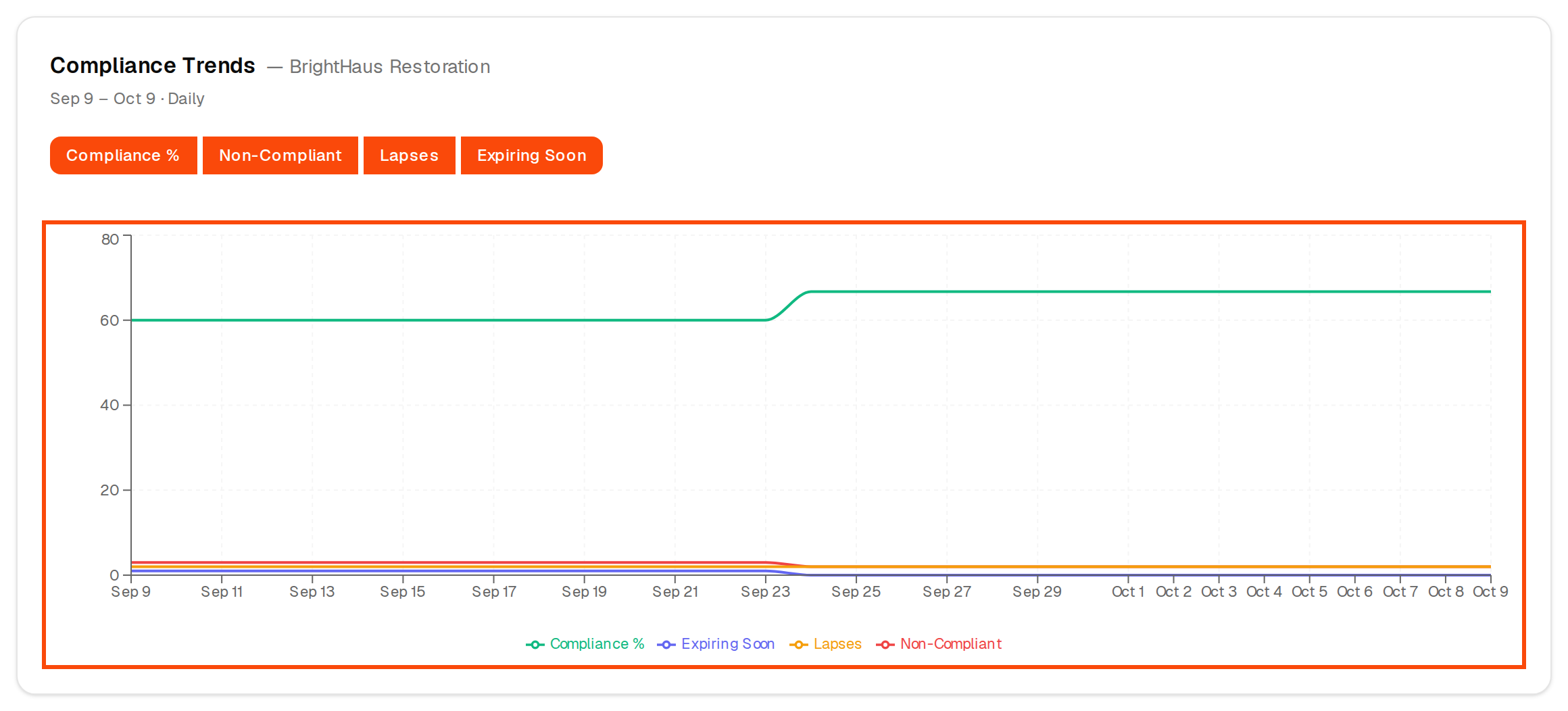
The Compliance Trends chart shows the period you picked, by day, week or month depending on its length. Use the buttons above it to show or hide Compliance %, Non-Compliant, Lapses and Expiring Soon. A rising Compliance % line and falling Lapses mean your program is working.
Step 5. Find the gaps by coverage
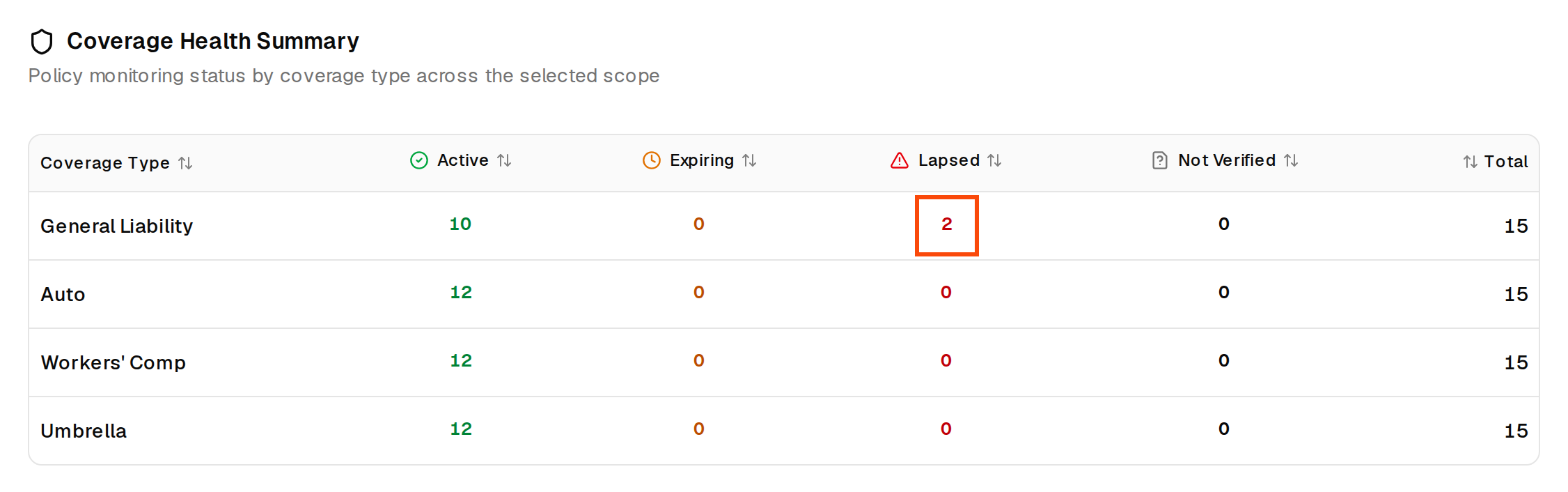
Coverage Health Summary has one row per coverage type (general liability, workers' compensation and so on) and counts how many locations are Active, Expiring, Lapsed and Not Verified for it. These counts are about whether the policy is in force, not whether it meets every requirement.
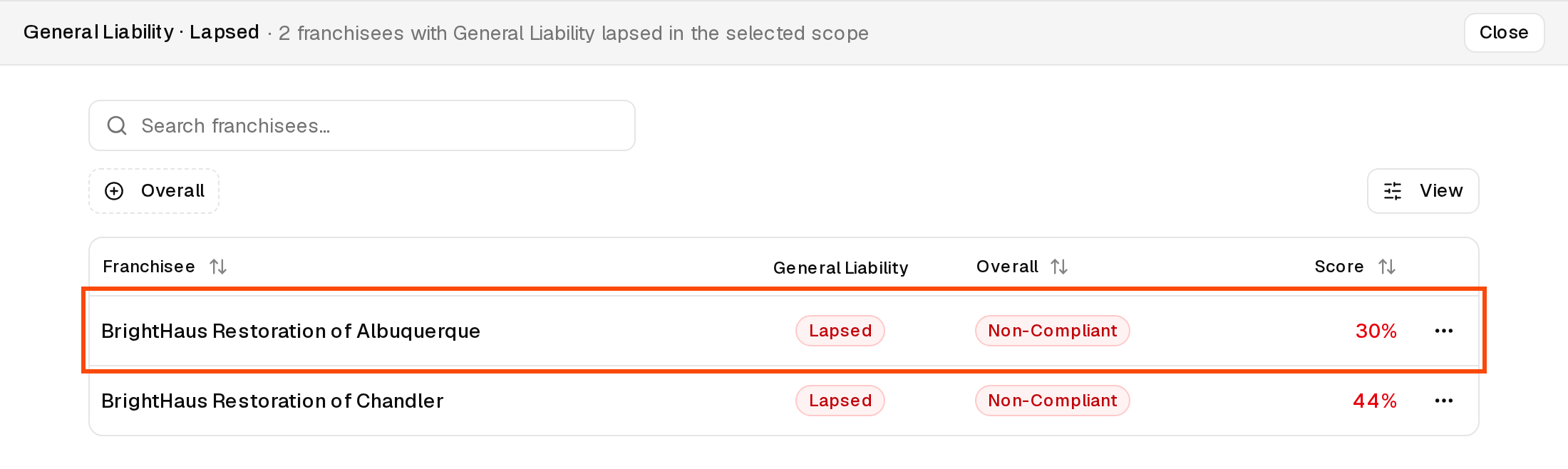
Click any count to see the locations behind it. The panel says how many franchisees match, for example "2 franchisees with General Liability lapsed", and lists each one with its overall compliance status and score. Click a name to open that location.
Step 6. Go from a tile to the locations
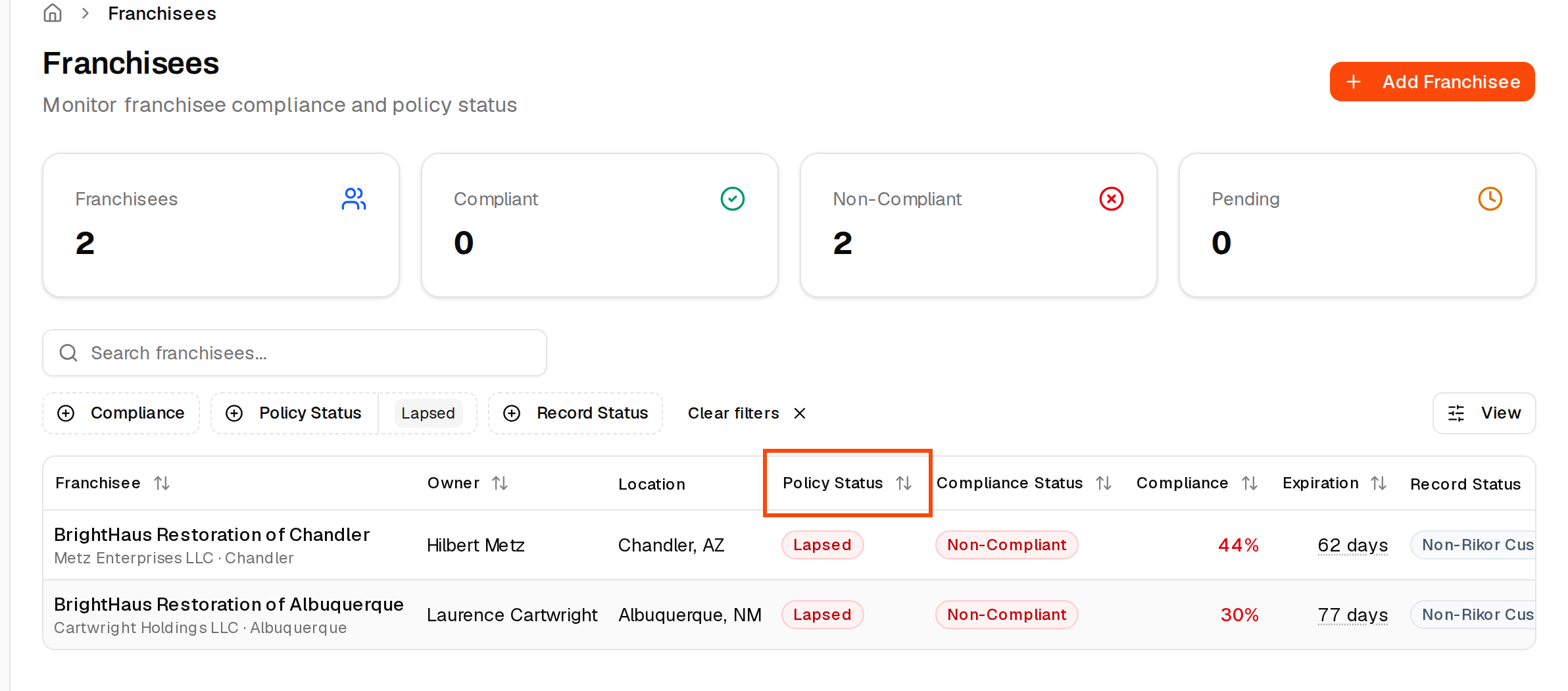
Every tile's link opens Franchisees already filtered. For example, View lapsed on Lapsed Policies shows only the locations with a lapsed policy. Open a location and choose Compliance to see exactly what is wrong; see How do I know what's wrong with a franchisee's insurance?
Step 7. Scan every location in the matrix
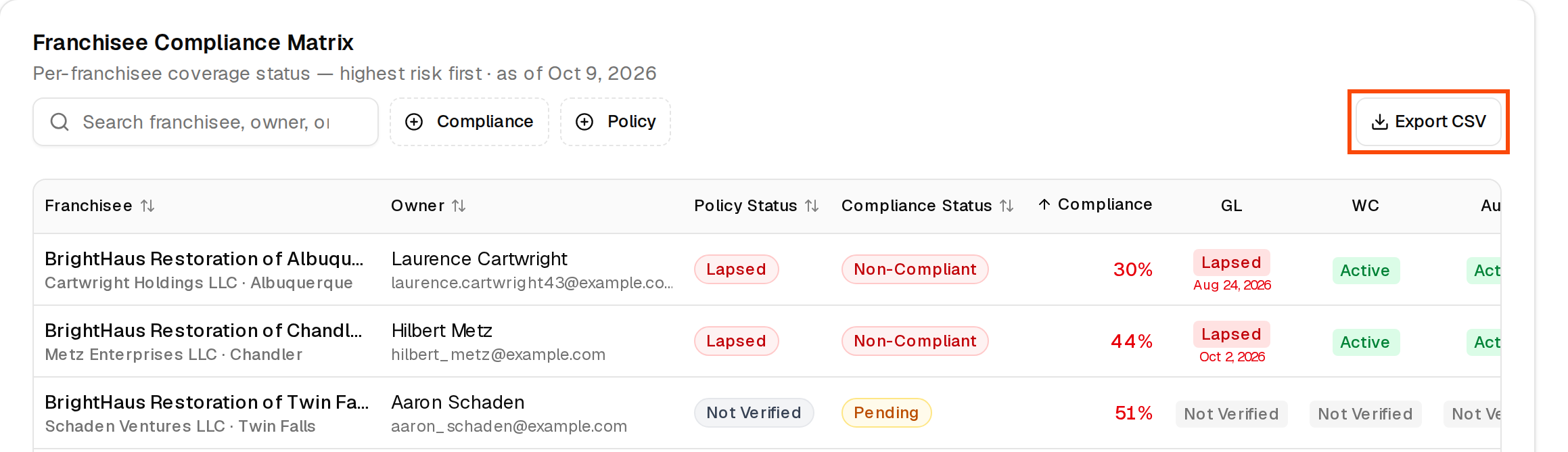
At the bottom, the Franchisee Compliance Matrix lists every location, highest risk first, with its policy status, compliance status, compliance percentage and one column per coverage. Search by franchisee, owner or email, filter by Compliance or Policy, and click Export CSV to download it. Click a row to open the location.
If you manage several brands
Platform users, who oversee several brands, see this same franchisor dashboard across every brand on their platform, with two more tiles on top: Franchise Brands and Total Franchisees. The matrix adds an All Brands menu to narrow it to one brand. Every link and drill-down works the same way. See For platform users: what you can see and do.
If something goes wrong
- "No Compliance Data Available." There is nothing to show for the period you picked. Choose a longer Period. If it stays empty, your locations may not be loaded yet; email support@rikor.io.
- A number looks a day behind. Analytics is measured once a day, so a change made today may not show until tomorrow. The Franchisees list always shows the current status.
How this protects your brand
Monitoring shows you where a franchisee's insurance falls short. The way to close those gaps for good is to have franchisees insured right from the start. Franchisees insured through Rikor get coverage built to your brand's requirements by a dedicated Rikor consultant, and with monitoring on they're 93.3% compliant, against 48% for franchisees insured elsewhere. Make sure your brand's Rikor link is in your franchisee onboarding: Add Rikor to your franchisee onboarding.
Related: Statuses explained · How do I know what's wrong with a franchisee's insurance? · How to read the Executive Summary Report