
This guide is for franchisor and platform teams who want their own software to read their insurance compliance data. With a Rikor API key, your systems pull your locations, each one's compliance status and score, the coverages on file and what is missing or expiring, straight from the RMS. No more asking us for exports.
Before you start, have: Manager access in the RMS, and the name of the system or person who will hold the key. If you don't see API Access in your left menu, email support@rikor.io and we'll turn it on for your brand or platform.
What the API shares, and what it never does
| Shared | Never shared |
|---|---|
| Your locations: entity name, DBA, city, state and postal code | Owner names, emails and phone numbers |
| Each location's compliance status and score | Tax ids |
| Each required coverage: on file or missing, dates, limits against your requirements, policy number, expiring or lapsed | Certificates and other documents |
| Rollups for your brand, or for every brand on your platform | Revenue, payroll, drivers and notes |
The API reads your compliance data. It can't change your locations, coverages or certificates. Status refreshes overnight and whenever Rikor approves a new certificate.
Franchisors: a key reads your brand. Platforms: one key reads every brand on your platform.
Step 1. Open API Access
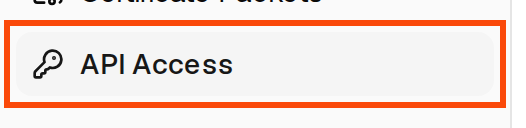
Sign in at app.rikor.io and click API Access in the left menu.
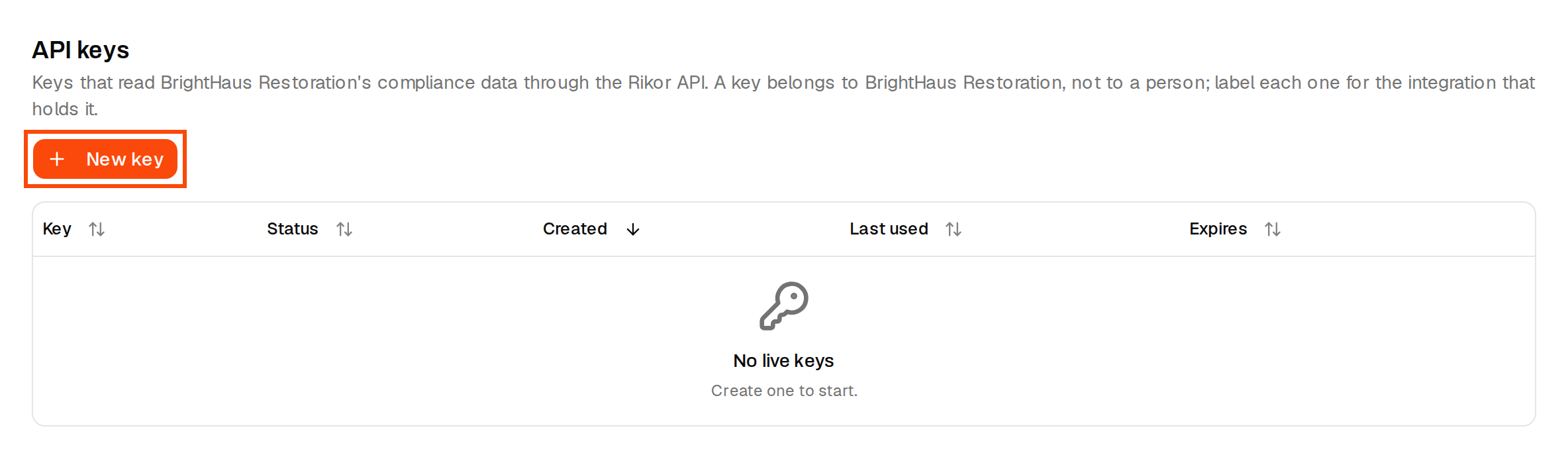
The API keys list shows every key your brand or platform holds, with its status, when it was created, when it was last used and when it expires. Click New key.
Step 2. Name the key
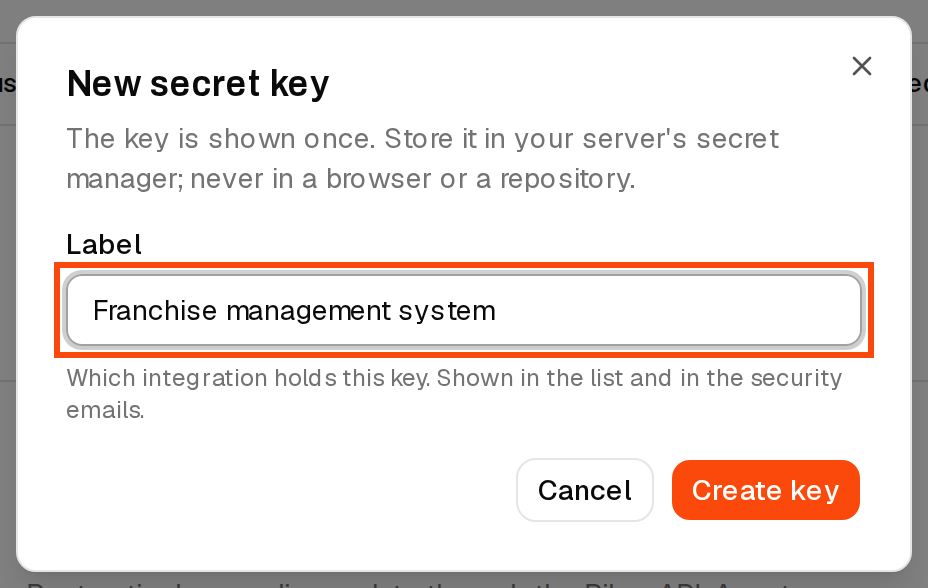
Give the key a Label for the system that will hold it, for example the name of your franchise management system. A key belongs to your company, not to a person, so the label is how you tell keys apart later. Click Create key.
If you've been signed in for a while, the RMS asks for a fresh sign-in code first. Enter the code we email you and the key is created.
Step 3. Copy the key and hand it to your tech contact
The key is shown once. Click the copy button and store it somewhere safe, such as your password manager or your developer's secret store, then click I've stored it. If you close the window without copying it, roll the key for a new one (Step 4).
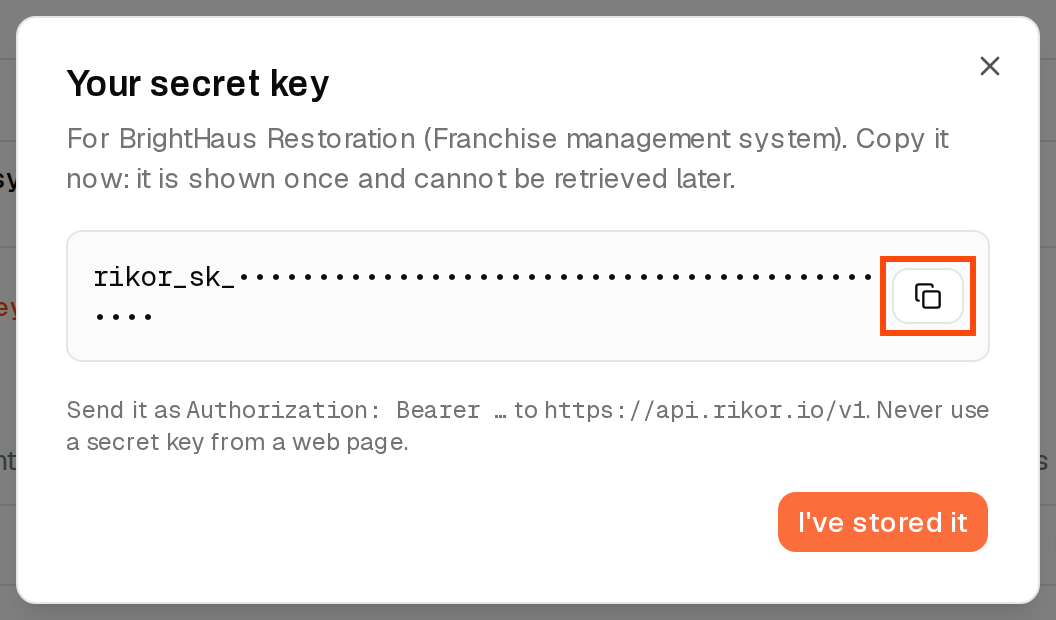
Send it to whoever is building the connection, along with the developer docs at docs.rikor.io. The Quickstart walks them through their first call. The key works only from a server: never paste it into a web page, a spreadsheet or an email thread with people who don't need it.
Step 4. Roll or revoke a key
Open the menu on a key's row:
- Roll key issues a new key with the same label. The old one keeps working for 24 hours, so your systems can switch over without downtime.
- Revoke stops the key immediately. Use it when someone who had the key leaves or a key may have been exposed. This can't be undone.

Revoked and expired keys are hidden from the list. Use the link under the list to show them.
Connect your franchise management system
Rikor can connect software you already use, such as your franchise management system or CRM, so it reads your compliance data directly. You don't create a key for it. Here's how it works:
- Tell us which system you want connected, in writing. Email support@rikor.io.
- Rikor sets up the software company as a partner and connects it to your brand.
- The partner appears under Connected apps on your API Access page, with when it was connected and when it last read your data.
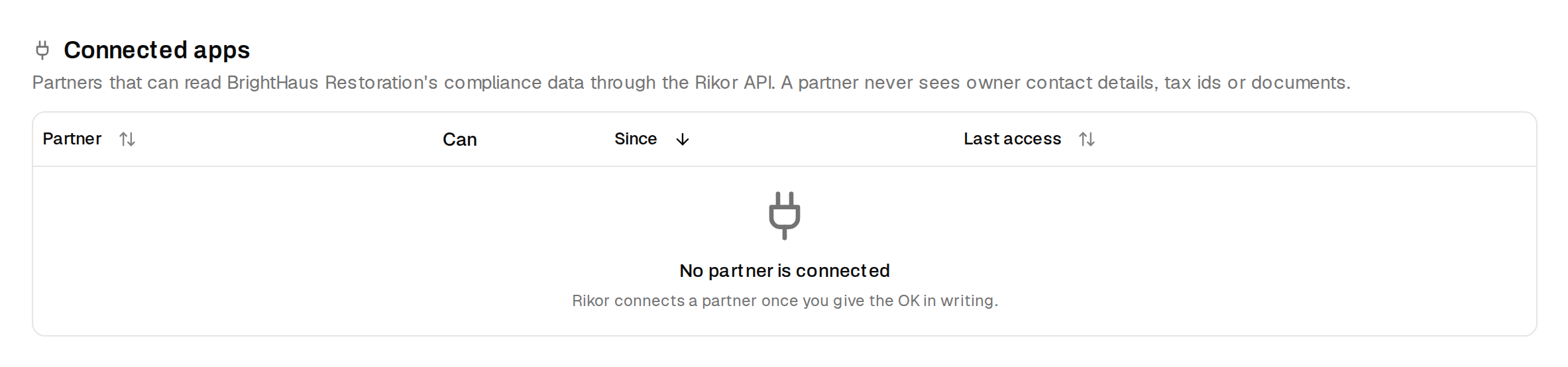
A partner sees the same data a key does and never sees owner contact details, tax ids or documents. To cut one off, open the menu on its row and choose Revoke access. It loses access right away, and your managers and the partner are notified.
Using a system we aren't connected to yet? Ask. We add partners as brands request them.
Match locations with your own ids
Your system can tag each location in the RMS with the id it already uses, then look locations up by that id. Records match up on both sides without anyone keeping a crosswalk spreadsheet. Your developer sets this up through the API; see Map your own ids.
If something goes wrong
- I don't see API Access. It hasn't been turned on for your brand or platform yet, or you don't have Manager access. Email support@rikor.io.
- I don't see New key. You need Manager access. Ask a Manager on your team, or see How to add users and contacts.
- I lost the key. It can't be shown again. Roll it for a new one.
- Our system gets refused. Check the key wasn't revoked or rolled more than 24 hours ago. Your developer can find error details in the Errors guide.
How this protects your brand
The API puts your franchisees' coverage where your team already works, so gaps get seen and closed faster. Monitoring shows you where a franchisee's insurance falls short. The way to close those gaps for good is to have franchisees insured right from the start. Franchisees insured through Rikor get coverage built to your brand's requirements by a dedicated Rikor consultant, and with monitoring on they're 93.3% compliant, against 48% for franchisees insured elsewhere. Make sure your brand's Rikor link is in your franchisee onboarding: Add Rikor to your franchisee onboarding.
Related: How to add users and contacts · Rikor API developer docs