
This guide is for franchisees who hire subcontractors. You set the insurance your subcontractors must carry, invite each one by email, and Rikor collects and checks their certificates of insurance (COIs). You see every subcontractor's coverage in one list.
Before you start: look for Subcontractors under Insurance in the left menu of the RMS. It appears when your brand has subcontractor monitoring turned on and your location is insured through Rikor. If you don't see it, email support@rikor.io.
Step 1. Set your subcontractor requirements
You decide what your subcontractors must carry, not your franchisor. The first time you open Subcontractors, choose how to get started:
- Use recommended (Start recommended): general liability and workers' compensation at standard limits, the typical contractor baseline.
- Set my own (Build my own): choose exactly which coverages and limits your subcontractors must carry.
Either way, the certificate holder is filled in with your business name and address. Review the coverages and click Publish. You can change them later: the Subcontractor Requirements card at the top of the page lists them, and Manage opens them again. Changes apply to every subcontractor.

Step 2. Invite a subcontractor
Click Invite subcontractor. Enter their Email. First name, Last name, Business name and a Message are optional; they confirm their business name during setup. Click Send invitation.
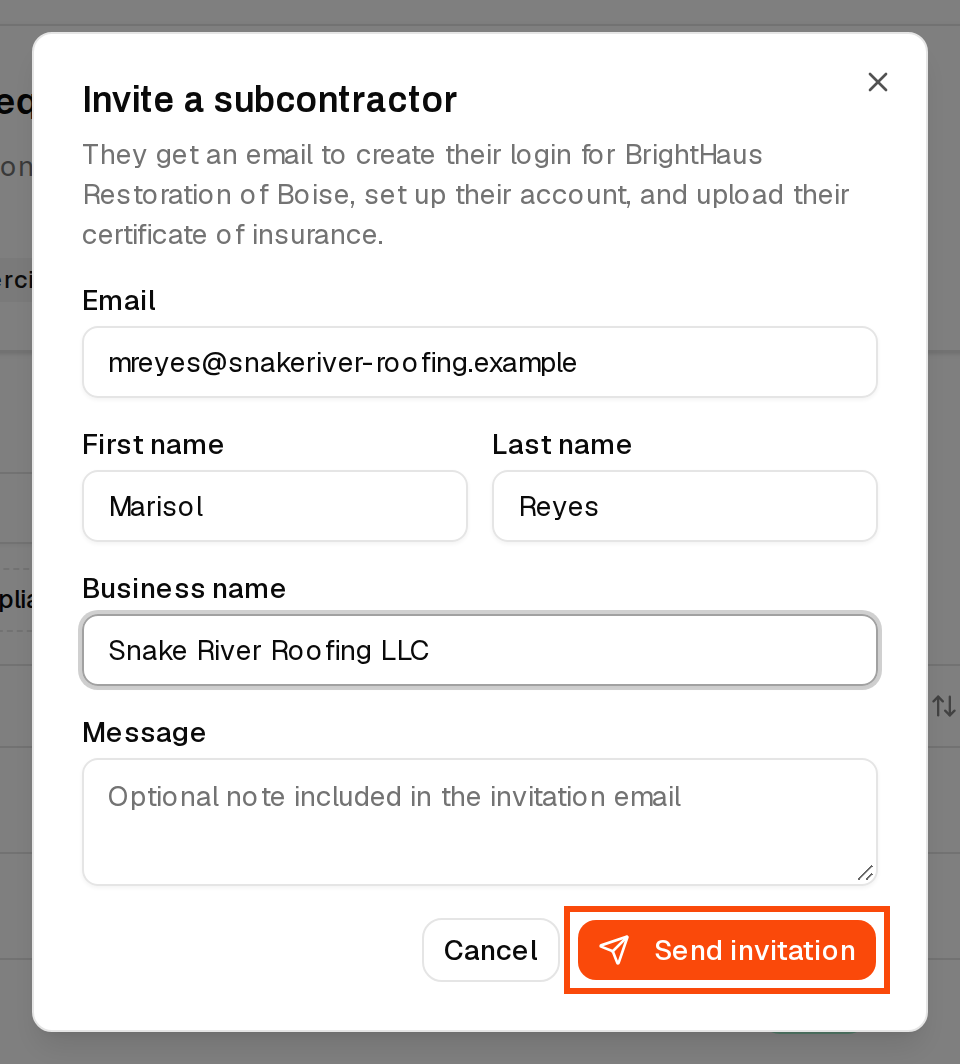
Use the address the subcontractor will sign in with. Each business is set up once per email, so if another franchisee already works with them, they won't get a second account.
If the subcontractor already uses Rikor, the dialog says so and the button reads Add to my subcontractors. Your requirements are added to their account and they keep their existing login.
Step 3. What your subcontractor does
A new subcontractor gets an email from Rikor with the subject You're invited to join … on RIKOR. From there:
- They click Accept Invitation. The link works for 30 days and only with the email you invited.
- They click Accept invitation, enter the six-digit code we email them (there is no password) and accept again.
- They answer a short setup form about their business and click Finish setup.
- They click Go to my compliance page and upload their certificate as a PDF. Rikor reviews it against your requirements.
A subcontractor who already uses Rikor gets an email with the subject … requires proof of insurance for your business and a View Requirements & Upload COI button instead.
After that, Rikor emails your subcontractors when a certificate is missing, doesn't meet your requirements, or a policy is about to expire or has lapsed. You don't need to chase them. Rikor doesn't email you when a subcontractor uploads, so check the list for updates.
Step 4. Read the list
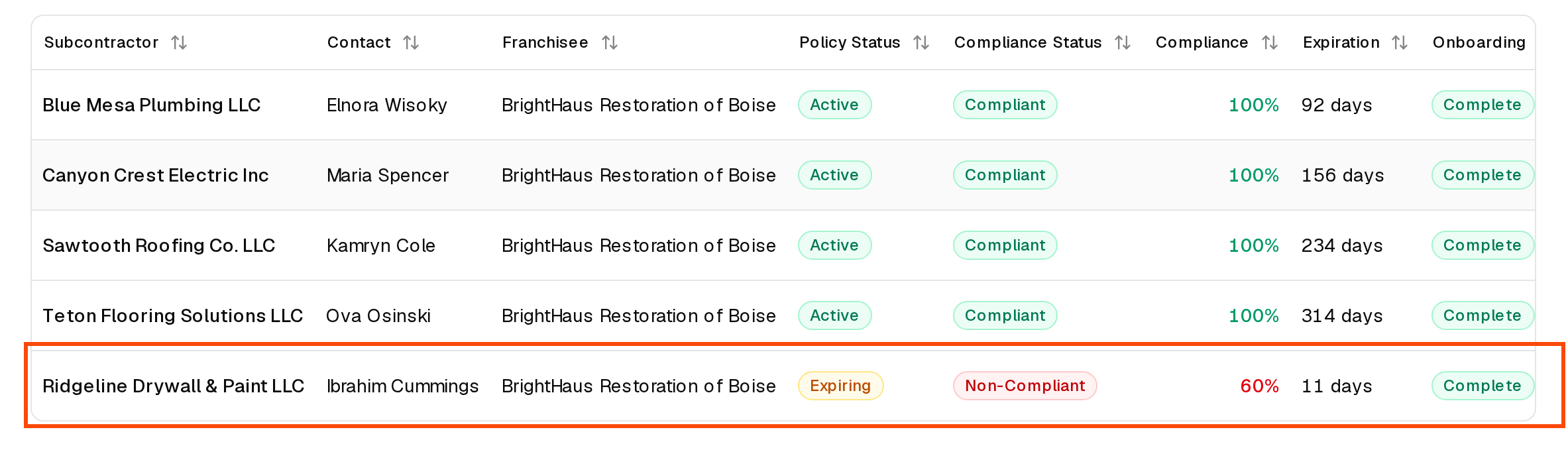
The list shows every subcontractor with its Policy Status (Active, Expiring, Lapsed or Not Verified), Compliance Status (Compliant, Non-Compliant or Pending), compliance percentage and next Expiration. Onboarding shows whether they've finished setup, and Login shows where their invitation stands. Use the filters at the top to narrow the list.
In this example Ridgeline Drywall & Paint is Expiring and Non-Compliant, while the others are Compliant.
Step 5. Open a subcontractor's Compliance Ledger
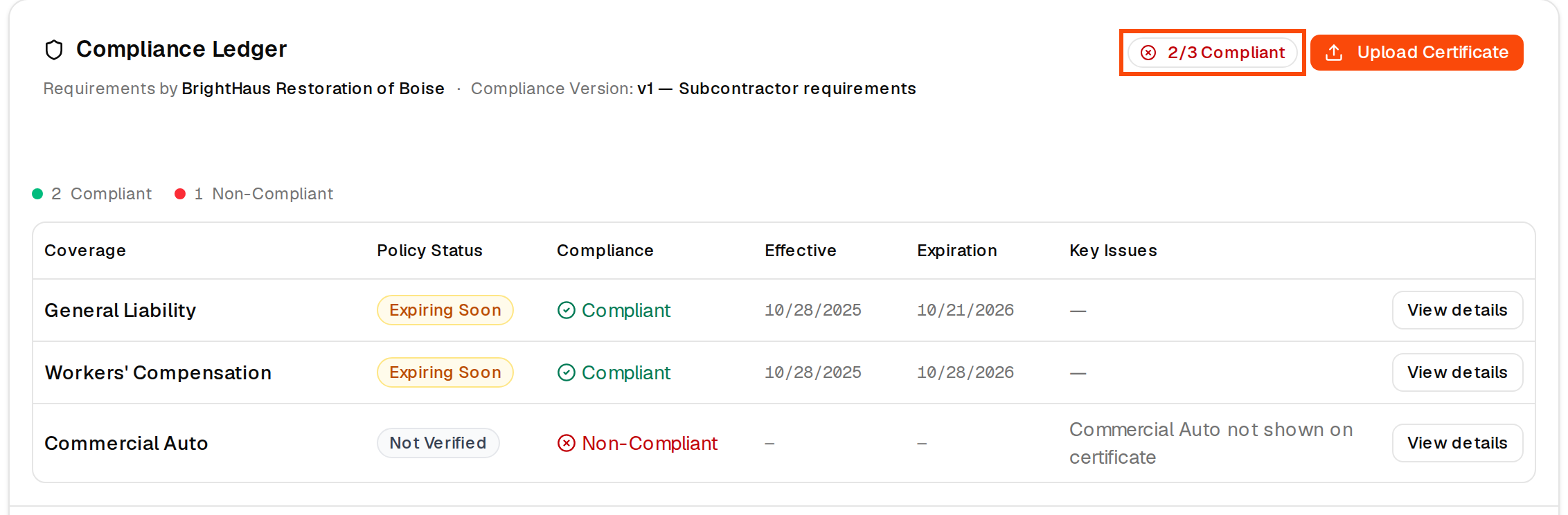
Click a subcontractor's name, then Compliance. The Compliance Ledger has one row for each coverage you require, with its policy status, dates and a Key Issues column that says what is wrong. The badge at the top shows how many coverages pass, for example 2/3 Compliant. The ledger works the same way as your own (see How do I know what's wrong with a franchisee's insurance?).
Step 6. Resend an invitation or end a relationship
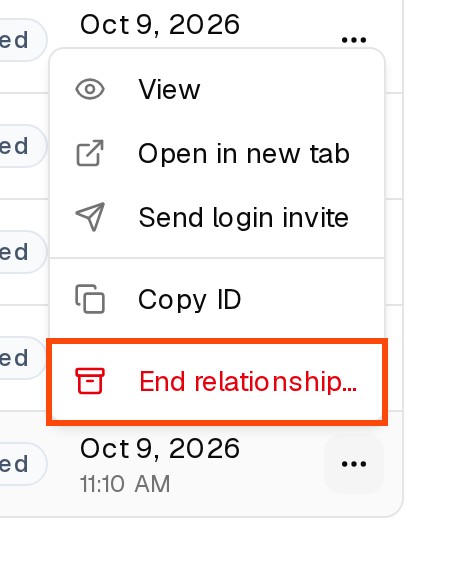
Open the menu at the end of a subcontractor's row:
- Resend invite sends the invitation again if it is still pending or has expired. Revoke invite cancels a pending one.
- End relationship… is for a subcontractor you no longer work with. Click End relationship to confirm. They stop appearing in your list and stop getting reminders for your requirements. Their business, login and history stay, and you can invite them again later.
If something goes wrong
- "Invitation saved, but the email didn't send." The subcontractor is on your list but didn't get the email. Check the address, then use Resend invite from the row menu.
- The invitation expired. Invitations last 30 days. Use Resend invite.
- Your subcontractor didn't get a sign-in code. They need to use the exact email you invited. Ask them to check spam, or email support@rikor.io.
Related: How to upload a COI · How do I log in to the RMS? · How to request a certificate of insurance