
Trying to upload your certificate of insurance (COI) and it won't go through? Find the message you see below and follow the fix. If none of them works, email the PDF to support@rikor.io and we'll add it for you.
The upload page doesn't show numbered error codes. If you see a message that isn't listed here, take a screenshot and send it to support@rikor.io with your business name.
When you choose the file
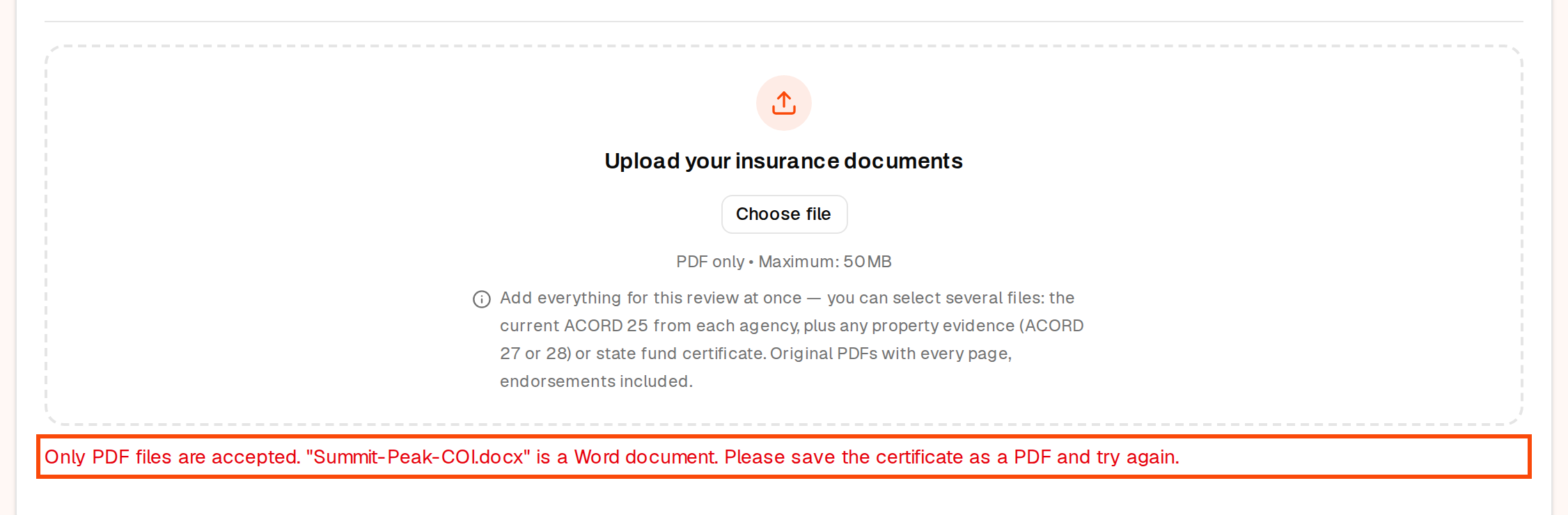
"Only PDF files are accepted."
The upload page takes PDF files only. The message names the file and what it is, for example a Word document, a JPG image or a ZIP archive. Save the certificate as a PDF, or ask your agent for the PDF, and add it again.
If the message says the file is not a valid PDF file, the file ends in .pdf but isn't really a PDF (for example a photo renamed to .pdf), or it is damaged. Ask your agent to send the certificate again as a PDF.
A photo of a paper certificate won't work. Ask your agent for the original ACORD 25 PDF with every page, endorsements included.
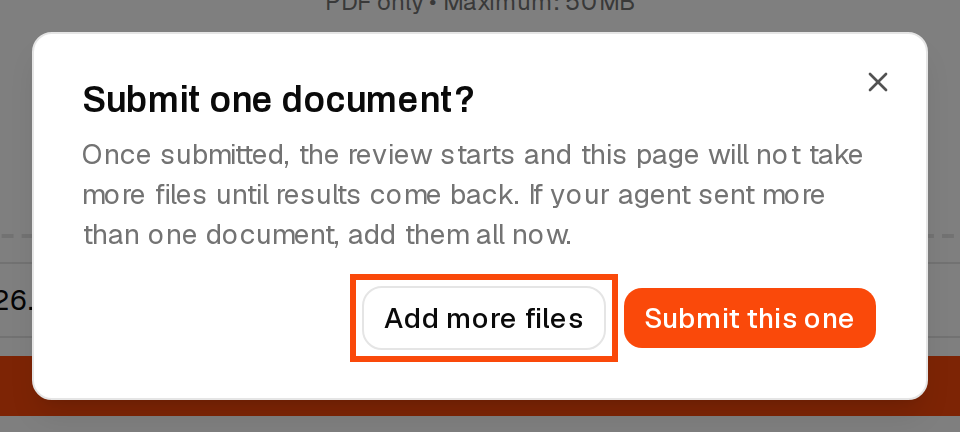
"Submit one document?"
This isn't an error. When you upload one file, the page checks before it starts the review, because it takes no more files until the results come back. If your agent sent more than one document (for example a certificate from each agency), click Add more files and add them all. If one file is everything, click Submit this one.
When you click Upload
"Upload failed. Please check your connection and try again."
Your browser lost its connection during the upload. Check your internet connection and click the upload button again. On a phone, try Wi-Fi or a computer.
"Upload failed. Please try again or contact support."
The upload didn't complete. Try once more. Large scanned files are the most common cause: keep the PDF under 4MB. The original PDF from your agent is much smaller than a scan and reads better. If it keeps failing, email the PDF to support@rikor.io with your business name and we'll add it to your page.
"This upload link is invalid."
The link you opened doesn't point to a business. Use the button in the most recent email from Rikor, or email support@rikor.io with your business name and we'll send your link.
After the upload
"We couldn't use that document"
The file uploaded, but it isn't a certificate of insurance, so it can't be reviewed. The message says why:
- It's a quote. A quote is an estimate for coverage that isn't in force yet. Once your agent binds the policy, ask them for a certificate of insurance (ACORD 25) and upload that.
- It's a policy, a notice or other paperwork. We need the one-page certificate (ACORD 25) that summarizes your coverage. Your agent can issue one.
- We couldn't read it. Upload a clear PDF of the certificate, not a photo or a faded scan.
Click Upload another to try again. If you're sure the file is a certificate, reply to the email we sent you and our team will take a look.
"Your certificate doesn't show any current coverage"
Every coverage your franchise requires is either expired or missing from the certificate. Ask your agent for a current certificate (ACORD 25) showing your active policies, then upload it.
There's no upload box, only "Documents received, under review"
Your certificate is already being reviewed, and the page takes no more files until the results come back, usually within 24 hours. Forgot a document? Reply to your confirmation email and our team will add it to this review.
When you sign in
No code arrives
Check your spam folder and click Resend. Codes only go to an email on file for the business, so if nothing comes, try the email your franchisor uses for you. Still nothing? Email support@rikor.io.
"That code isn't valid. It may have expired."
Codes last 5 minutes. Click Resend and type the newest code. After too many wrong codes you'll see Too many incorrect attempts; request a new code and try again.
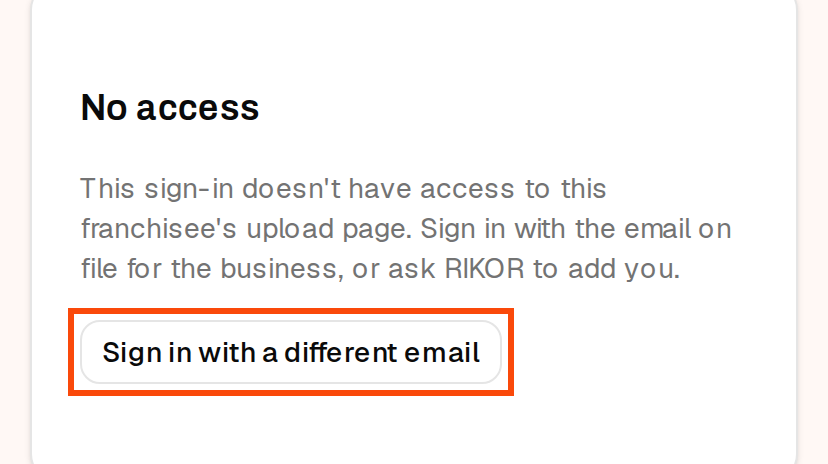
"No access"
You signed in with an email that isn't on file for this business. Click Sign in with a different email and use the email your franchisor has for you, or ask support@rikor.io to add you.
Your agent's upload link
When you click Send to my agent, your agent gets their own upload link that works for 30 days without signing in.
- "This upload link has expired." Your agent clicks Request a new link, and a fresh link goes to the same email address.
- "This upload link was closed" or "Link not recognized." Send it to your agent again from your upload page, or email support@rikor.io.
Stopping the reminder emails
Rikor sends reminders on behalf of your franchisor while your certificate is missing, can't be verified, doesn't meet your brand's requirements, or a policy is expiring or has lapsed. They stop on their own:
- while a certificate you uploaded is being reviewed, and
- once your certificate meets your brand's requirements, until a policy gets close to its expiration date.
The fastest way to stop them is to upload a current certificate that meets the requirements, or click Send to my agent so your agent can do it.
Reminders go to the email on file for your business and to each contact who receives compliance emails. To change who gets them, reply to any reminder or email support@rikor.io with your business name and the address to remove or add. If you manage users for your location in the RMS, you can also open Users, edit the person and turn off Compliance emails. If the location has closed or been sold, tell us so we can update the record.
Related: How to upload a COI · How do I log in to the RMS? · Why is Rikor requesting a certificate of insurance from me?