
Your franchisor requires a certificate of insurance (COI) that names a specific certificate holder, word for word. This page shows where to find the exact wording for your brand, why it has to match, and what to send your insurance agent so the certificate is right the first time.
Step 1. Find your brand's certificate holder
Open your upload page from the email Rikor sent you (for example the Upload My COI button) and sign in with the code we email you. Below the upload box, in your brand's insurance requirements (for example BrightHaus Restoration's insurance requirements), the Certificate Holder box shows the full name and address your certificate has to show.
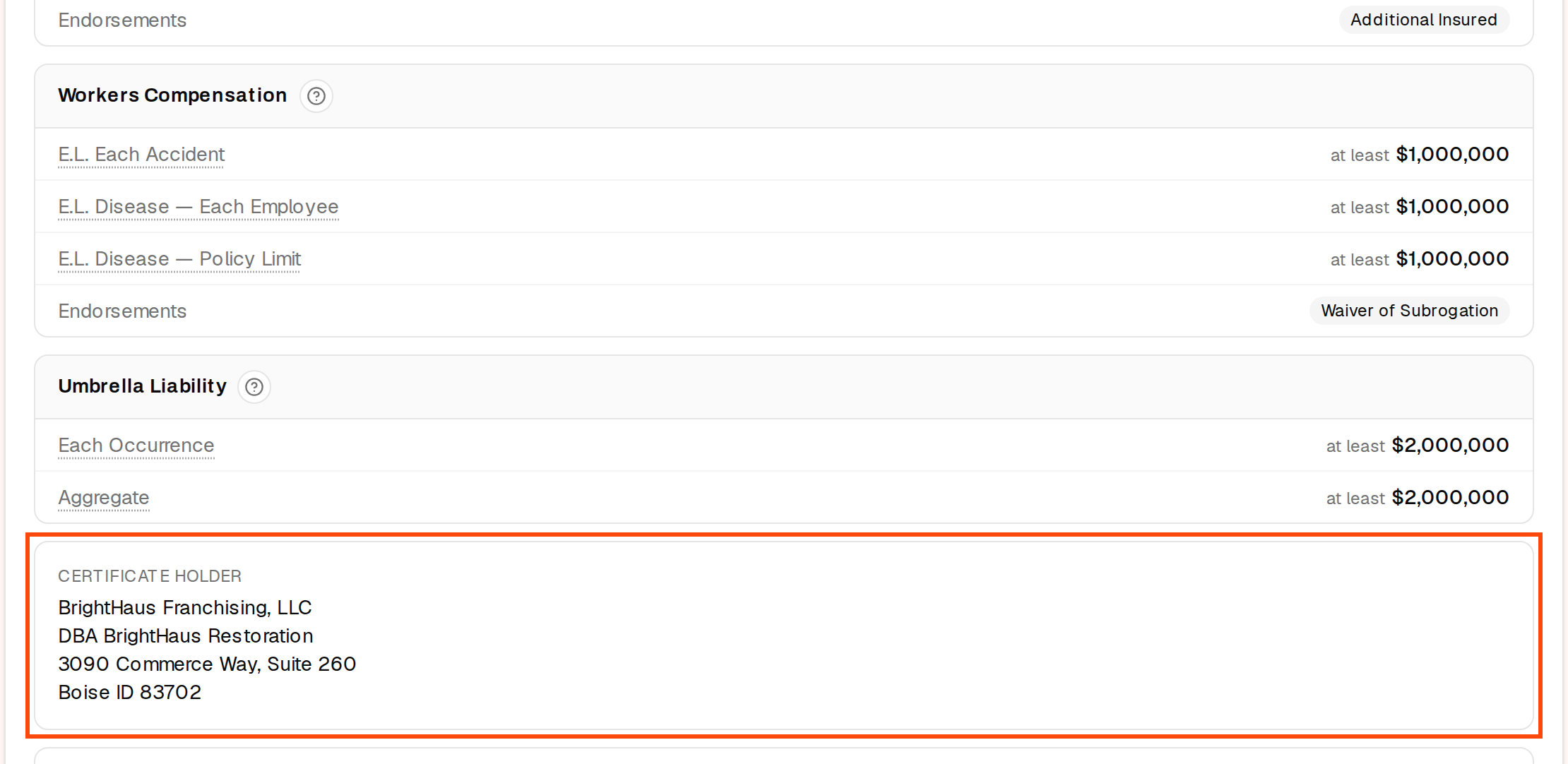
Already signed in to the RMS at app.rikor.io? Open Compliance. Under Certificate Requirements at the bottom of the Compliance Ledger, you'll see the holder's name and address on one line, and the Description of Operations. That line leaves out any DBA line, so when you send the holder to your agent, copy the full box from your upload page.

If your brand also lists a Description of Operations, your certificate has to show that wording too.
Step 2. Ask your agent to copy it exactly
The certificate holder has to match what your brand lists, line for line:
- The full legal name, including LLC, Inc. or any other ending.
- Every line of the address: street, suite, city, state and ZIP.
- No abbreviations, no brand nickname in place of the legal name, and no other address.
The easiest way is to let Rikor send it for you. On your upload page, click Send to my agent and enter your agent's email address. Your agent gets your brand's requirements, certificate holder included, and a link to upload the certificate to your page.
If you'd rather email your agent yourself, copy the Certificate Holder box and the Description of Operations into your message, and ask for a current ACORD 25 certificate that shows them exactly as written, with every coverage and endorsement your brand lists.
Why it has to match exactly
Rikor checks the certificate holder on every certificate you upload. If it doesn't match, the certificate doesn't meet your brand's requirements, even when every coverage and limit is right. This is the most common reason a certificate comes back, and it can't be waived with an exemption.
When the holder is wrong, your results on the upload page show the Certificate Holder row as Does not match. Under it, Your certificate must show this certificate holder gives the exact wording, with a Copy button you can paste into a message to your agent. The results email shows the same wording under Certificate Holder must read. Your franchisor sees "Certificate holder doesn't match the required holder."
If the name matches but the address is different, your results show Certificate Holder Address as Differs from required address. That alone doesn't fail the certificate, but ask your agent to correct it on the next one.
Certificate holder vs additional insured
The certificate holder is the party the certificate is addressed to: it proves to them that you have insurance, and it gives them no coverage of their own. An additional insured is different. It is an endorsement on your policy that extends your coverage to another party, such as your franchisor, for claims that come out of your work. Only your insurance company can add it, and the certificate shows it in the additional insured column and the description. Many brands require both, so check the endorsements listed on your upload page and make sure your agent adds every one, as well as the holder name.
Other companies asking for a certificate
A landlord, a customer or a vendor registration may ask for a certificate that names them as holder. That is a separate certificate from the one for your franchisor. Send their written request to your insurance agent, with the holder's full name, full address and anything they need added, such as additional insured. If Rikor is your insurance agency, email that to support@rikor.io.
If something goes wrong
- No Certificate Holder box on your upload page. Your brand hasn't set one. Ask your franchisor, or email support@rikor.io with your business name.
- Your agent says the holder is already right. Compare the certificate with the Certificate Holder box line by line. A missing LLC, a different suite number or an old address is enough to fail the check.
- Still not sure? Email support@rikor.io with your business name and the certificate as a PDF.
Related: How to upload a COI · How to request a certificate of insurance · How to read a certificate of insurance